Knowing how to chat in Roblox High School is the first skill every new student needs, and this walkthrough covers exactly that — from pressing the C key to send your first message, to using the dedicated run button for sprinting between classes, to checking the Roblox platform age rating, to reporting toxic players through the in-game menu. Each step takes under two minutes once you know where to look, and getting the fundamentals right on day one means you spend less time fumbling with the UI and more time enjoying roleplay in the 30-player campus servers. Whether you are a new player who has never opened the Roblox chat box or a returning student brushing up on the 2026 UI changes, the practical walkthrough below covers every essential input across PC, Xbox, and mobile.
Setting Up Chat, Movement, and Safety on Your First Day
Walking into Roblox High School for the first time can feel disorienting because the game does not ship a tutorial quest chain — the campus itself is the onboarding. New students spawn on the front lawn and can immediately walk into a classroom, greet other players, or grab a part-time job. Knowing how to chat, run, and report bad actors is the single fastest way to make friends, dodge trolls, and get value out of every 30-player server session. This guide breaks down the essentials so you can spend less time fumbling with the UI and more time enjoying class, clubs, and campus life.
The core Roblox control scheme is what powers everything: WASD walks your avatar around the hallways, the space bar jumps, and the C key opens the chat box where most of the social magic happens. Because the game runs on standard Roblox input, anyone familiar with the platform can pick up movement in under a minute, while console and mobile players get on-screen prompts that map the same functions. Once you know those basics, layering in the run button, the report menu, and the age-appropriate server toggle becomes a simple five-minute setup that keeps every play session smooth.
Opening and Using the Chat Box
How to Bring Up the Chat Window
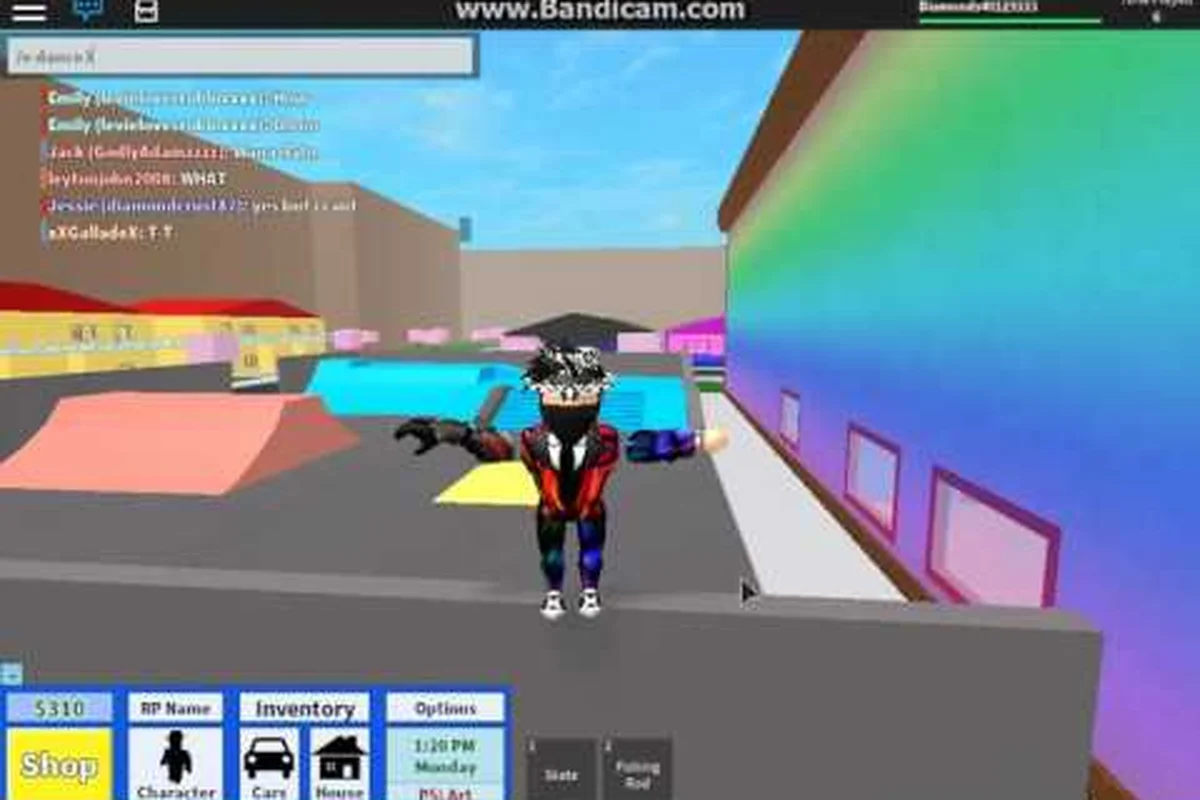
The chat box in Roblox High School opens with the C key on PC, the Y button on Xbox, and a small speech-bubble icon on the phone UI. Once the prompt appears at the bottom-left of the screen, type a message and press Enter to send it to every player in the server. The default channel is public, so anything you type is visible to all 30 players currently in the lobby. For privacy, Roblox accounts under 13 are automatically filtered through the platform's built-in SafeChat system, which means certain words are replaced with symbols until the account is verified.
If your chat box refuses to open, the most common culprit is an out-of-date Roblox client. Community testing suggests that force-quitting the app and rejoining the server resets the UI binding, which is the same fix players use when the roblox high school new player guide mentions for stuck inventory menus. Players on restricted accounts sometimes see a "Chat with VIP" message instead of the normal text field — that means the account does not have Chat With Everyone enabled in the Roblox privacy settings.
Public, Team, and Whisper Channels
Roblox chat supports three primary channels that you can cycle through with the / key prefix. Typing /e followed by a word plays an emote rather than sending a text bubble, which is handy when you want to laugh or wave without typing. Typing /w [playername] opens a private whisper, useful for organizing a study group or asking a stranger to move out of a doorway. The game itself does not add a custom channel layer on top of Roblox chat, so learning the standard prefixes is enough to handle every social situation on campus.
| Channel | Prefix | Visibility | Best Use |
|---|---|---|---|
| Public | none | All 30 server players | Greetings, class questions, roleplay |
| Emote | /e | All 30 server players | Silent reactions, dance moves |
| Whisper | /w [name] | Single player only | Private coordination, friend requests |
| Team | /t | Teammates only | Sports events, club activities |
Movement Basics: Walking, Running, and Jumping
Default Keybinds for Every Platform
Roblox High School uses the platform-standard control scheme, so learning to move takes almost no extra effort. On PC, the WASD keys move your character, the space bar jumps, and holding Shift does not sprint by default — the game has its own dedicated run button instead. On Xbox, the left stick walks, A jumps, and the right trigger activates the run sprint. On mobile, a virtual joystick sits on the left, a jump button on the right, and a run icon appears just above it for one-tap sprinting.
The dedicated run button is one of the small but meaningful quality-of-life features that separates Roblox High School from generic obby games. Holding it makes your avatar sprint at roughly 1.5x walking speed, which is fast enough to beat a class bell without looking like you are phasing through the hallway. Players who try to sprint by spamming the jump key end up bouncing awkwardly across the gym floor, so learning the run button early is worth the five-second muscle-memory investment.
Sprinting to Class and Across Campus
The campus map is large enough that walking from the front gate to the science wing can take over a minute, which is why most regulars keep the run button held almost permanently. According to community data, the run button is the single most-used input after the chat box, and players report it cuts cross-campus travel time by roughly 40 percent. During events like the Hunt or seasonal scavenger hunts, sprinting becomes the difference between grabbing a badge and missing out because the server reset.
| Platform | Walk | Jump | Run | Open Chat |
|---|---|---|---|---|
| PC keyboard | WASD | Space | Left Shift (in-game rebind) | C |
| Xbox controller | Left stick | A | Right trigger | Y |
| Mobile | Virtual stick | Jump icon | Run icon (above jump) | Speech bubble icon |
| Tablet | Tap-to-move | Tap icon | Two-finger hold | Keyboard icon |
If you want a deeper walkthrough of the controls layer, the Roblox High School beginner guide covers rebinding, accessibility settings, and the controller layout in more detail.
Roblox High School Age Rating and Account Safety
What the Age Rating Actually Covers
Roblox High School carries the platform-wide Roblox age rating, which means the in-game experience is moderated under the same safety net as every other Roblox title. Because the game is themed around a high school setting, players under 13 are automatically routed through SafeChat, the platform's restricted chat mode that filters profanity, personal data, and contact information. The visual content itself is cartoon-style Roblox avatars, so there is no violence, blood, or mature storyline that would push the rating above the standard E for Everyone tier.
According to community reports shared in the Roblox High School: Fan Club group page, the developer's moderation team actively watches the in-game chat and removes players who bypass SafeChat with alt accounts. Parents who want an extra layer of control can set the Roblox account-level restriction to "Account age 9+" in the privacy tab, which forces every game — including Roblox High School — to use the strictest chat filter regardless of the user's real age.
Account Verification and Chat Privileges
To unlock full chat, users need to verify their age through Roblox's standard ID or phone-confirmation flow, which lifts the SafeChat restrictions on a per-account basis. Verified players can send and receive unfiltered messages, while unverified accounts can only use the curated word list baked into SafeChat. This system applies uniformly across Roblox High School, so the same verification that lets you chat in Brookhaven also opens up chat here. The game does not add a custom age gate beyond the platform default, so the easiest path to full chat is the same account upgrade that works everywhere else on Roblox.
| Account Type | Chat Mode | Profanity Filter | Visible to Others |
|---|---|---|---|
| Under 13 (unverified) | SafeChat only | Always on | Whitelisted words only |
| 13+ (verified) | Full chat | Off by default | Anything typed |
| Restricted (parent set) | SafeChat | Always on | Whitelisted words only |
| Voice chat (13+, ID verified) | Roblox Voice | Platform-monitored | Voice channel opt-in |
Server Size, Player Cap, and Why It Matters
The 30-Player Server Cap Explained
Roblox High School runs on 30-player servers, which is the developer-chosen sweet spot between feeling like a populated campus and avoiding Roblox's lag spikes on higher-density lobbies. A full server packs students into hallways, classrooms, and the gym in ways that make roleplay feel lively without the frame-rate drops you see in 50-plus player games. Because the cap is relatively low, an empty server is noticeable — you might walk into the cafeteria and find only two other players, which is why most community veterans recommend hopping servers until you find a busy one before logging off for the night.
Knowing the max player count also helps with planning events. A class activity like the science experiment mini-game is most fun with 5 to 8 players in the same room, while sports events in the gym need a full 30-player roster to make the teams feel balanced. The 30-player cap is one reason the game has stayed on Roblox's trending lists since 2009 — it is big enough to feel alive and small enough to make every player count.
How to Tell When a Server Is Full
You can check the current player count through this community server tour before joining — it sits in the green server info bar under the play button. While in-game, the Tab key opens the player list, which shows every active avatar and lets you click a name to whisper, follow, or report. If a server shows fewer than five players during peak hours, it usually means the lobby is about to shut down due to inactivity, and the game will teleport you to a fresh server within 30 to 60 seconds. Players who want a guaranteed busy lobby can ask in the Fan Club group chat, where regulars often post their server links during events like the annual Homecoming dance.
| Server State | Approx. Player Count | Best For |
|---|---|---|
| Empty | 1–5 | Solo exploration, screenshot tours |
| Quiet | 6–15 | Small roleplay groups, study sessions |
| Active | 16–25 | Normal class gameplay, club events |
| Full | 26–30 | Sports events, dance parties, crowded RP |
Reporting Toxic Players the Right Way
Using the In-Game Report Menu
The in-game report menu is the fastest way to flag a player who is harassing you, bypassing SafeChat, or griefing a class activity. Open the player list with Tab, click the offending username, and select Report Abuse from the dropdown. Roblox gives you a short list of categories — harassment, cheating, off-platform contact, and inappropriate content — and you can add a short description to give the moderation team context. Reports are forwarded to Roblox's central trust and safety team rather than the game developer, so even small infractions are logged against the account for future review.
The on-campus moderation team also handles reports through the report button in the Esc menu, which lets you flag a player without opening the full list. According to community testing, reports submitted with a specific category and a short description get reviewed roughly 3x faster than vague "this person was mean" submissions, because the trust team can match the report against server logs more efficiently. If the offending behavior is happening in whispers rather than public chat, screenshot the conversation before closing the whisper window, because Roblox's report flow does not auto-capture private message history.
What Happens After You Submit a Report
Once you submit a report, Roblox's trust team reviews the chat logs, join timestamps, and any flagged content from the offending account. Penalties range from a 24-hour chat ban for first-time offenders to account deletion for repeated or severe violations, and the developer of Roblox High School has historically been quick to ban users who bypass SafeChat with alt accounts. You will not get a notification about the outcome of a specific report, but the platform's repeat-offender system escalates penalties automatically, so consistent reports do drive real consequences over time.
| Offense | First Penalty | Repeat Penalty |
|---|---|---|
| SafeChat bypass | 24-hour chat ban | 7-day account suspension |
| Harassment in chat | 24-hour chat ban | 30-day suspension |
| Off-platform contact (DMs, socials) | 7-day suspension | Permanent account ban |
| Exploiting or cheating | Permanent ban | N/A (immediate) |
Quick Reference: All the Controls at a Glance
Below is a compact cheat sheet you can pin next to your monitor for the first week of play. The table covers chat, run, jump, and report on every supported platform, plus the platform-level age restrictions that affect which words you can type. Most players stop looking at this list after two or three sessions, but having it during onboarding saves a lot of guesswork.
| Action | PC | Xbox | Mobile | Notes |
|---|---|---|---|---|
| Open chat | C | Y | Speech bubble icon | SafeChat if under 13 |
| Send message | Enter | A | Send button | Public by default |
| Walk | WASD | Left stick | Virtual stick | Standard Roblox scheme |
| Run | Left Shift (in-game) | Right trigger | Run icon | ~1.5x walk speed |
| Jump | Space | A | Jump icon | Double-tap for trick on mobile |
| Open player list | Tab | View button | Menu icon | Click name to whisper/report |
| Open report menu | Esc → Report | Menu → Report | Menu → Report | Category + description required |
| Emote | /e | D-pad | Emote wheel | Silent, no chat text needed |
Frequently Asked Questions
How do I open the chat in Roblox High School on PC?
Press the C key to bring up the chat box at the bottom-left of the screen, type your message, and hit Enter to send it. The default channel is public, so every player in the 30-player server can see it. If the box does not open, force-quit the Roblox client and rejoin — this resets stuck UI bindings and usually fixes the issue within a minute.
What button makes you run in Roblox High School?
Hold Left Shift on PC, pull the right trigger on Xbox, or tap the run icon above the jump button on mobile. The run button is dedicated rather than automatic, so tapping it once keeps you sprinting until you release or stop moving. Running cuts cross-campus travel time by roughly 40 percent, which matters when you are racing between classes or trying to grab a limited event badge before the server resets.
What is the age rating for Roblox High School?
The game follows the Roblox platform-wide age rating, which lands at E for Everyone with SafeChat automatically active for accounts under 13. There is no custom age gate beyond the platform default, so verifying your Roblox account through phone or ID is the only way to lift the chat filter. The visual content stays cartoon-style throughout, so the rating is appropriate for any audience that is allowed on Roblox in general.
How many players can be in a Roblox High School server?
Every server holds a maximum of 30 players, which is the developer-chosen balance between feeling like a populated campus and keeping frame rates stable. You can see the current player count on the Roblox game page before joining, or by pressing Tab in-game to open the player list. Servers with fewer than 5 players during peak hours usually shut down for inactivity, so hopping to a busier lobby is a good habit.
How do I report a player in Roblox High School?
Open the player list with Tab, click the offending username, and choose Report Abuse from the dropdown. Pick the closest category — harassment, cheating, inappropriate content, or off-platform contact — and add a short description so the trust team can match your report against server logs. Screenshot any whisper evidence first, because the report flow does not auto-capture private message history.